Help for your safety team.
Two guides to get you started on the new version of SecurX. Release notes, answers, and video tutorials are on the way.
Logging into the new version of SecurX.
SecurX has been rebuilt, and sign-in is new for everyone. Your existing account and history are intact — you just need to set up your login once. It takes about two minutes.
-
Step 1
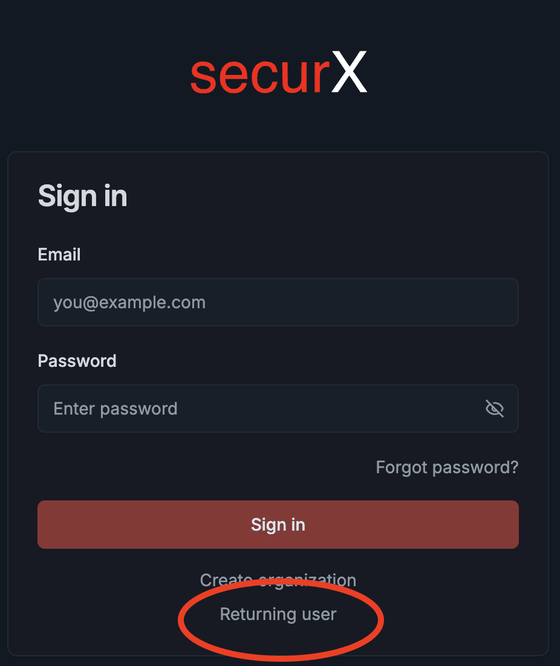
Choose "Returning user"
Go to app.securx.co. On the sign-in screen, select Returning user at the bottom — not Sign in, since you don't have a password yet.
-
Step 2
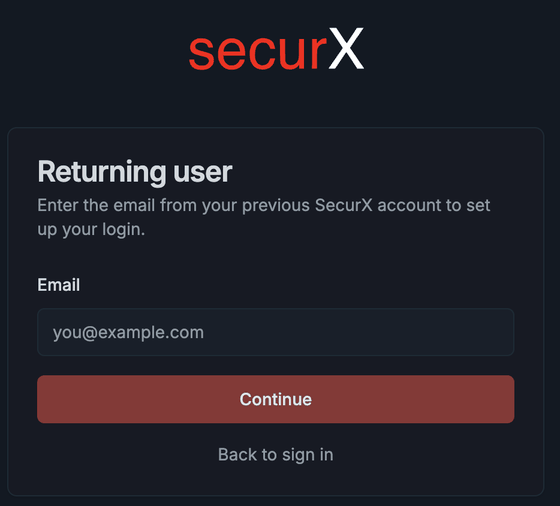
Enter your email address
Use the same email address from your previous SecurX account. That's how we connect you to your church and your existing records. Then select Continue.
-
Step 3
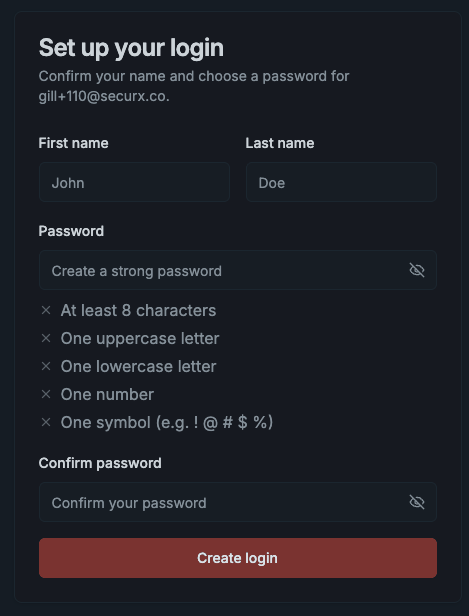
Confirm your name and choose a password
Check that your first and last name are correct, then create a password. It needs at least 8 characters, including an uppercase letter, a lowercase letter, a number, and a symbol. Each requirement checks off as you type.
-
Step 4
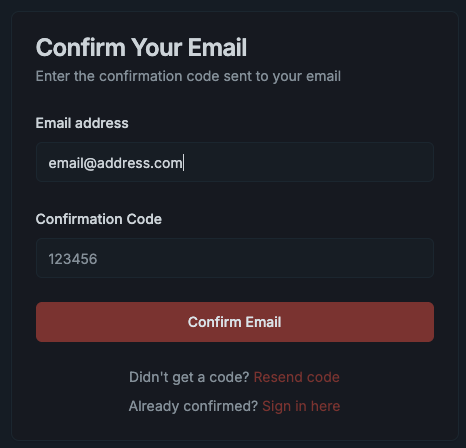
Enter the code from your email
We'll email you a 6-digit confirmation code. Enter it here to verify your address. If it doesn't arrive within a minute or two, check your junk or spam folder, or select Resend code.
-
Step 5
Sign in
That's it. From now on, sign in with your email and the password you just created. If you ever forget it, use Forgot password? and we'll email you a reset link.
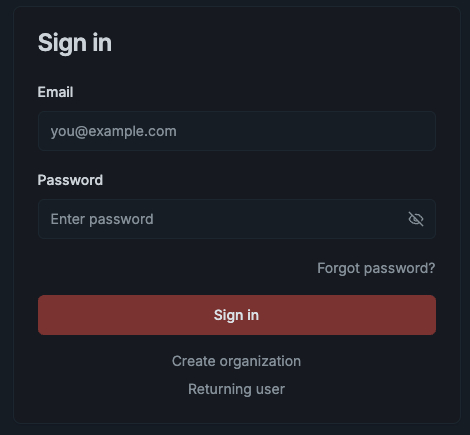


Stuck on any step? Email support@securx.co and we'll get you in.
Add a shortcut to your home screen.
There's no app to download. Add SecurX to your iPhone's home screen once and it opens full screen with a single tap — just like any other app, but with nothing to install or update. Five steps, about a minute.
-
Step 1
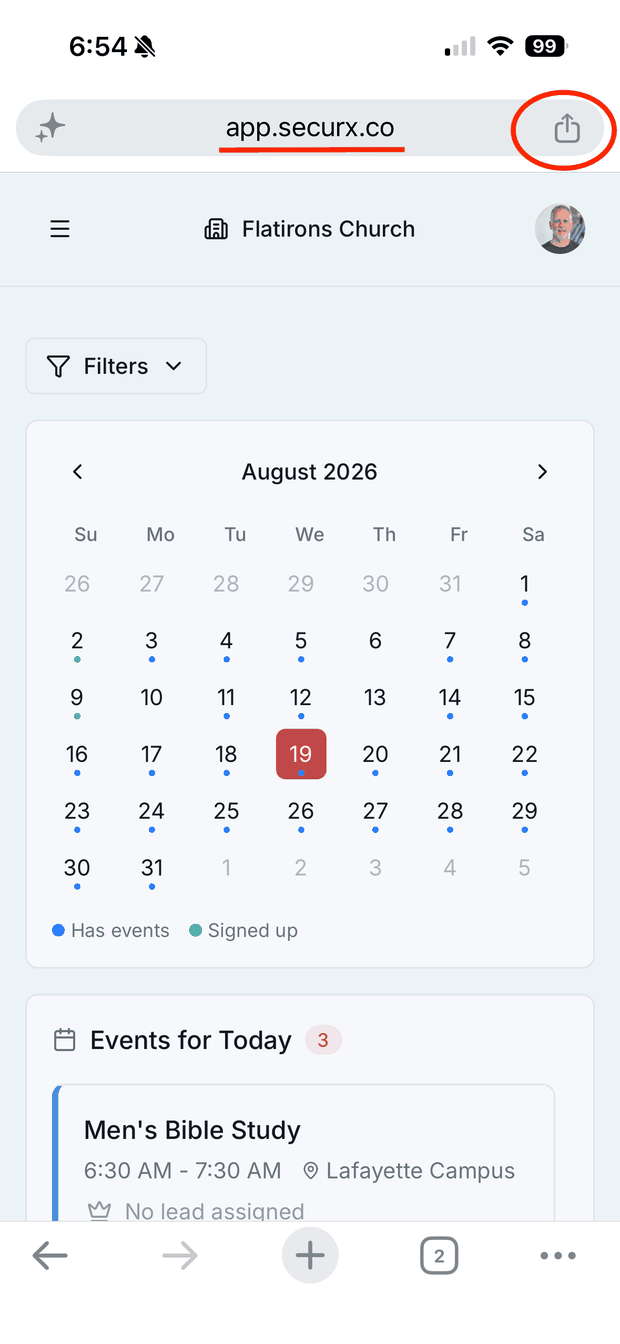
Tap the Share button
Open app.securx.co in Chrome and sign in. Tap the Share button at the right end of the address bar.
-
Step 2
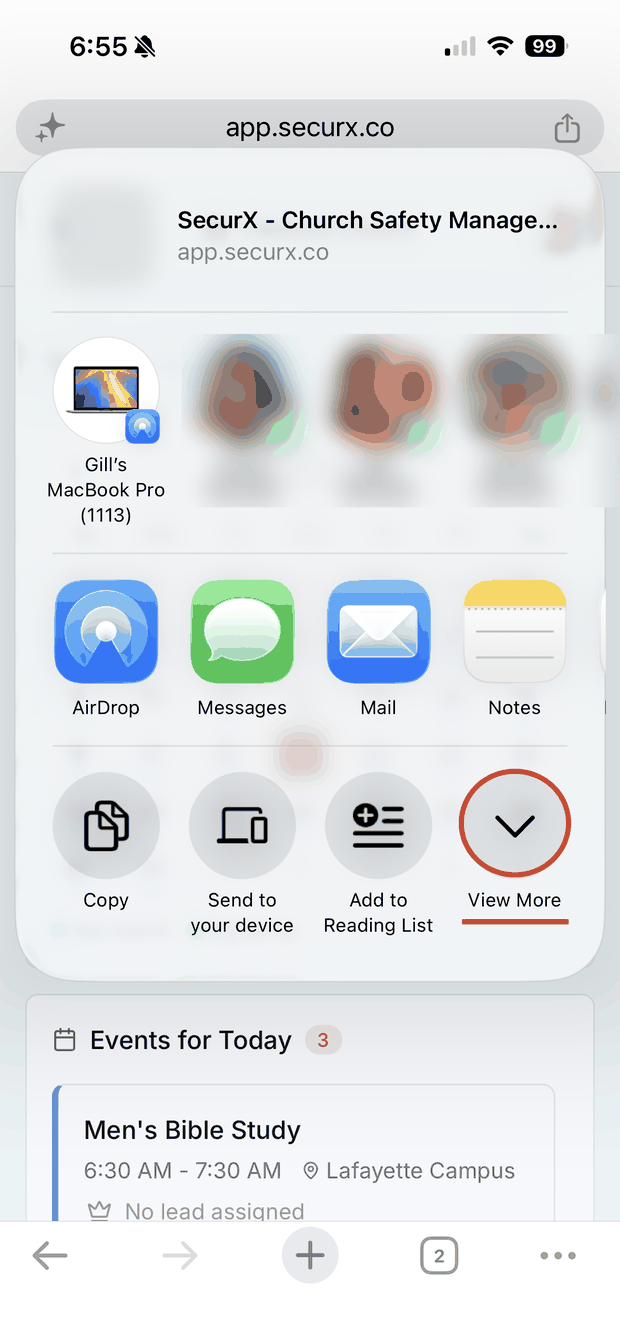
Tap "View More"
The share sheet opens. Tap the View More chevron at the bottom right to reveal the full list of options.
-
Step 3
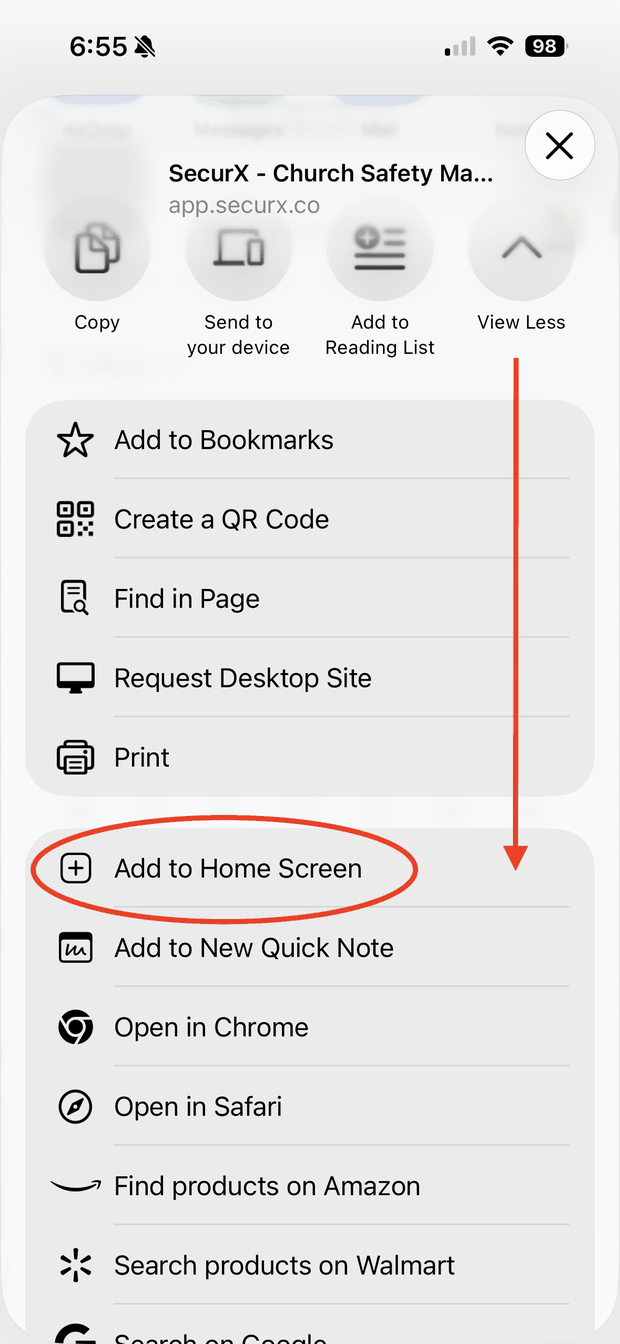
Choose "Add to Home Screen"
Scroll down the expanded list and tap Add to Home Screen.
-
Step 4
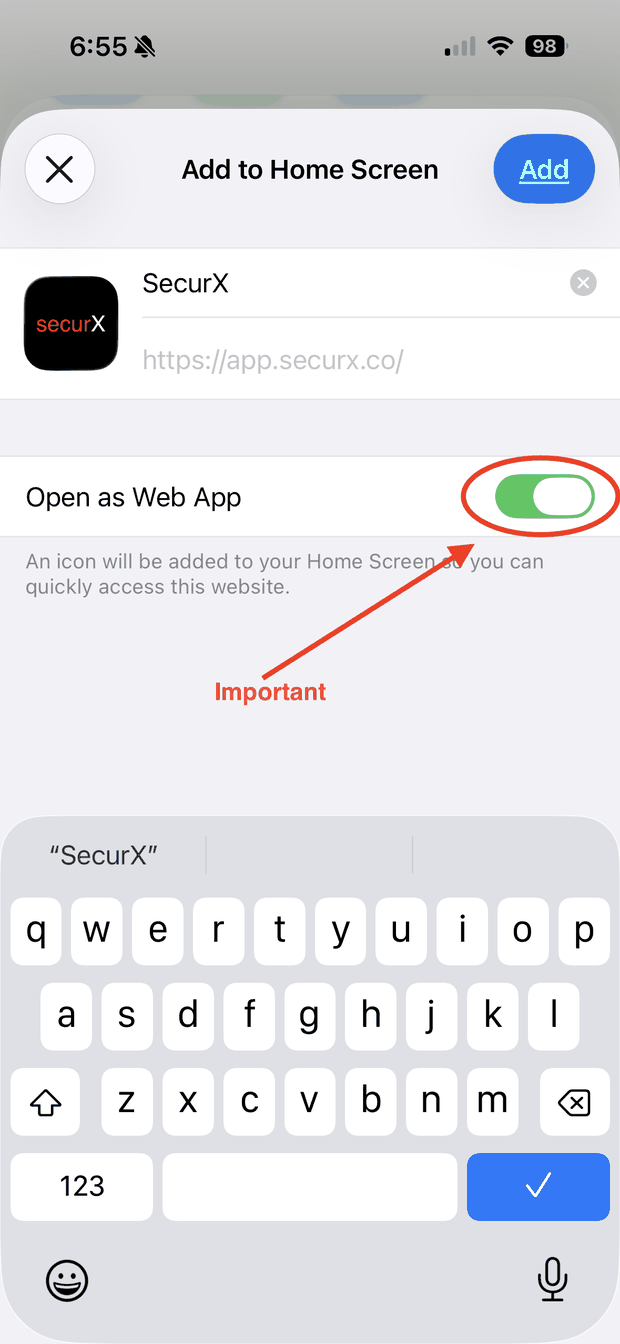
Turn on "Open as Web App"
Make sure the Open as Web App slider is green. This is the important one — leave it off and SecurX opens in a browser tab instead of full screen. Then tap Add.
-
Step 5
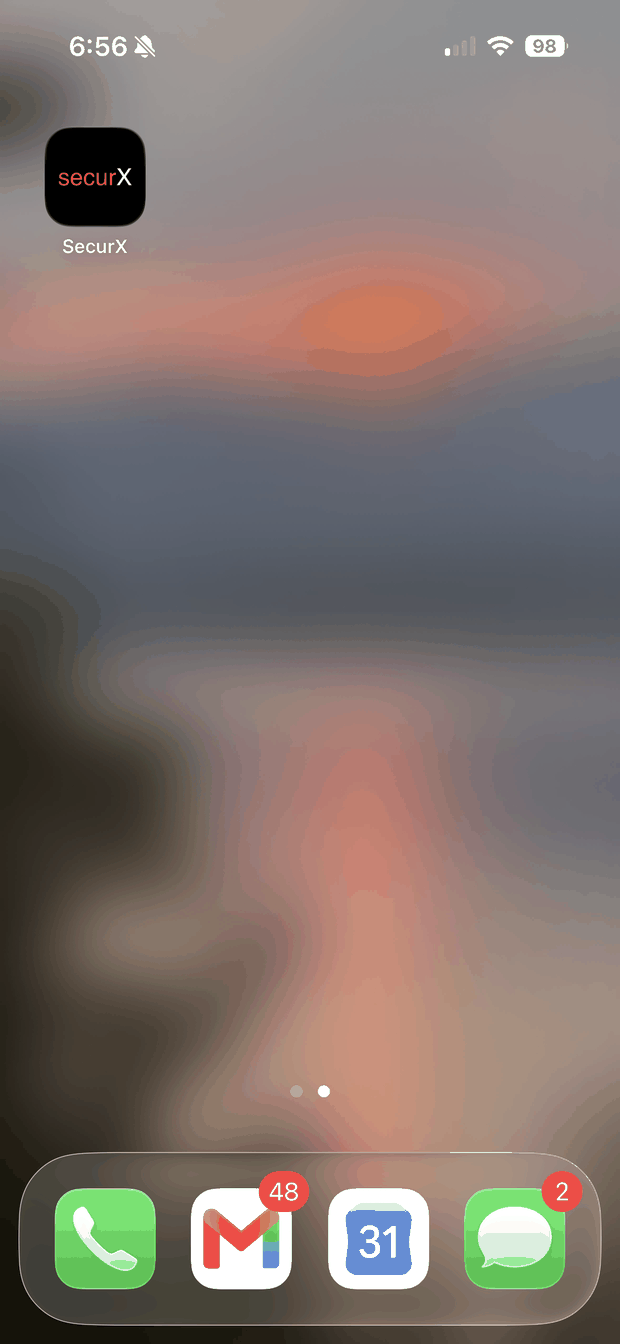
You're done
The SecurX icon is now on your home screen. Tap it and SecurX opens full screen, just like any other app — with nothing to install or update.


These steps show Chrome on iPhone. Safari works the same way — only the position of the Share button differs.
Talk to a person.
We run a safety team too. If something isn't working or you're not sure how to set it up, reach out.
Book a walkthrough
A live 30-minute session to configure SecurX for your church and get your team onboarded.
Schedule a time